The Easy Way to Backup Photos and Videos Without Missing a Shot
As a wedding or portrait photographer, one of the biggest stresses on location is making sure you never lose a single photo or video. Between dual memory cards, second photographers, and behind-the-scenes content, the amount of data can quickly become overwhelming. That’s where the Lexar Workflow Go comes in—an essential tool for on-the-go photo and video backups.
Here’s how I use it to keep my workflow seamless and my files safe.
Why You Need On-the-Go Photo Backup
When you’re shooting in the field, relying solely on memory cards or cloud storage is risky. Unexpected card failure, accidental deletion, or even device crashes can ruin hours of work. Having a portable, fast, and reliable backup system gives you peace of mind and allows you to focus on the shoot rather than worrying about lost files.
With the Lexar Workflow Go, you can:
- Offload photos directly from your camera cards
- Backup second photographers’ content quickly
- Charge your phone or other devices while working
- Store files safely on an SSD drive
What You Need to Get Started
Here’s the gear I bring for a wedding or portrait session:
- Lexar Workflow Go device with magnetic battery
- Two-terabyte SSD drive for fast, reliable storage
- Memory card slots for CF Express, SD, and micro SD cards
- USB-C or Lightning cable for connecting to your phone
- Camera with dual card slots (optional but recommended)
This setup allows you to offload photos in seconds—whether it’s from your camera, your assistant’s camera, or even a phone with BTS shots.
How to Use Lexar Workflow Go
Step 1: Set Up Your Device
- Push up the USB drive on the Workflow Go.
- Insert your SSD drive securely into the port.
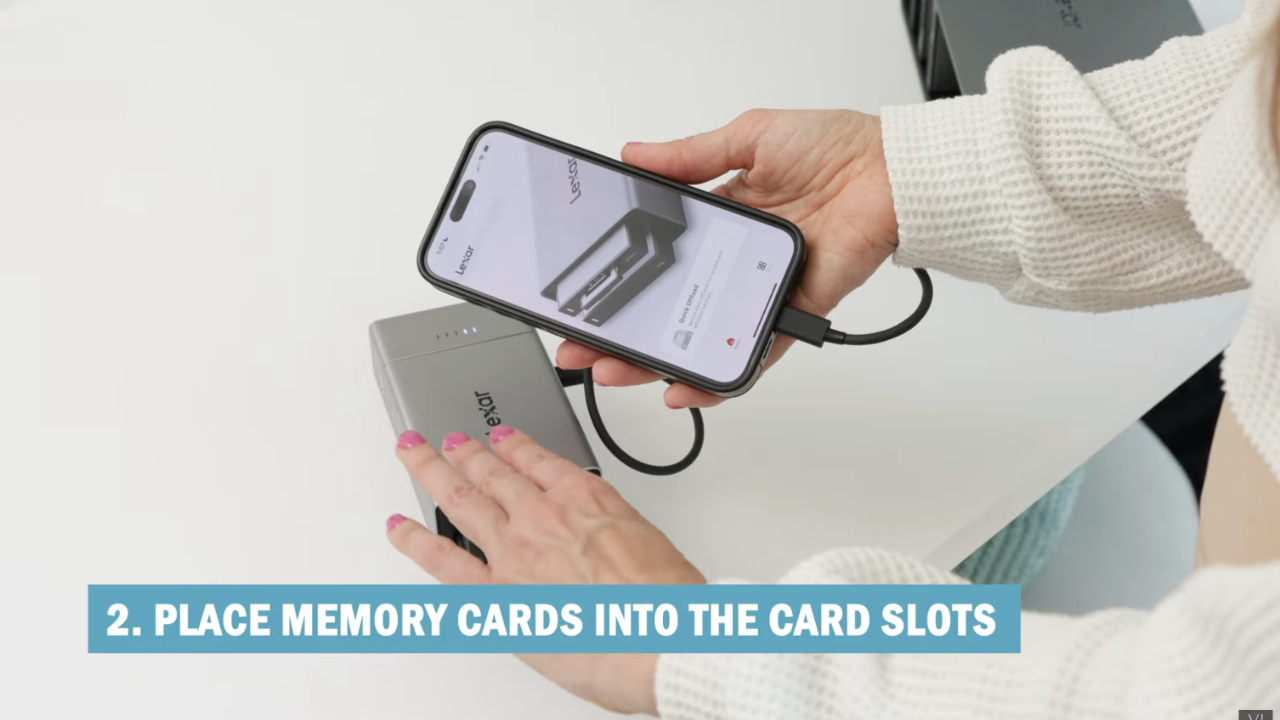
- Attach your memory card into the corresponding slot.
- Connect your phone using a fast USB-C or Lightning cable.
Step 2: Open the Lexar App
- Launch the Lexar app on your phone.
- Choose Photo Backup to save images from your phone.
- Use Quick Offload to copy files from your memory card to your SSD drive.
Step 3: Select Source and Destination
- Tap Source and select your camera card.
- Tap Destination and select your SSD drive folder.
- Name your backup folder for easy organization.
- Hit Next to start the transfer—it’s fast and efficient.
Tips for a Smooth Backup Workflow
- Backup multiple times per event: I usually back up before the ceremony, during downtime, and at the end of the night.
- Use a fast cable: Transfer speed depends heavily on the cord you’re using.
- Keep three backups: Dual card slots on your camera plus the Lexar Workflow Go SSD ensures triple redundancy.
- Work directly from the SSD: If needed, you can edit or share images straight from the drive—no extra steps required.
Advantages Over Traditional Methods
Compared to relying on cloud services or manually transferring files later:
- Instant access to your files in the field
- Faster workflow, especially with second photographers
- Durable SSD drives that are portable and reliable
- Peace of mind knowing all images are safely backed up
Final Thoughts
If you want a stress-free, reliable photo and video backup system for your wedding or portrait work, the Lexar Workflow Go is a game-changer. Not only does it keep your files safe, but it also speeds up your workflow, allowing you to focus on capturing memories instead of worrying about lost images.
For photographers who value efficiency and peace of mind on location, this device is an absolute must-have.
Are you ready to stop guessing and start growing your photography business with proven strategies?
My Mastermind program is designed for photographers who want to scale, find freedom, and build a business they truly love. Inside, you’ll get personalized coaching, step-by-step guidance, and the community support you need to thrive.
See if it’s the right fit for you: https://www.breatheyourpassion.com/photo-insiders-mastermind-optin

Want my Lightroom Presets? Here's your way to the shop: https://vanessajoy.samcart.com/products/the-complete-editing-bundle